

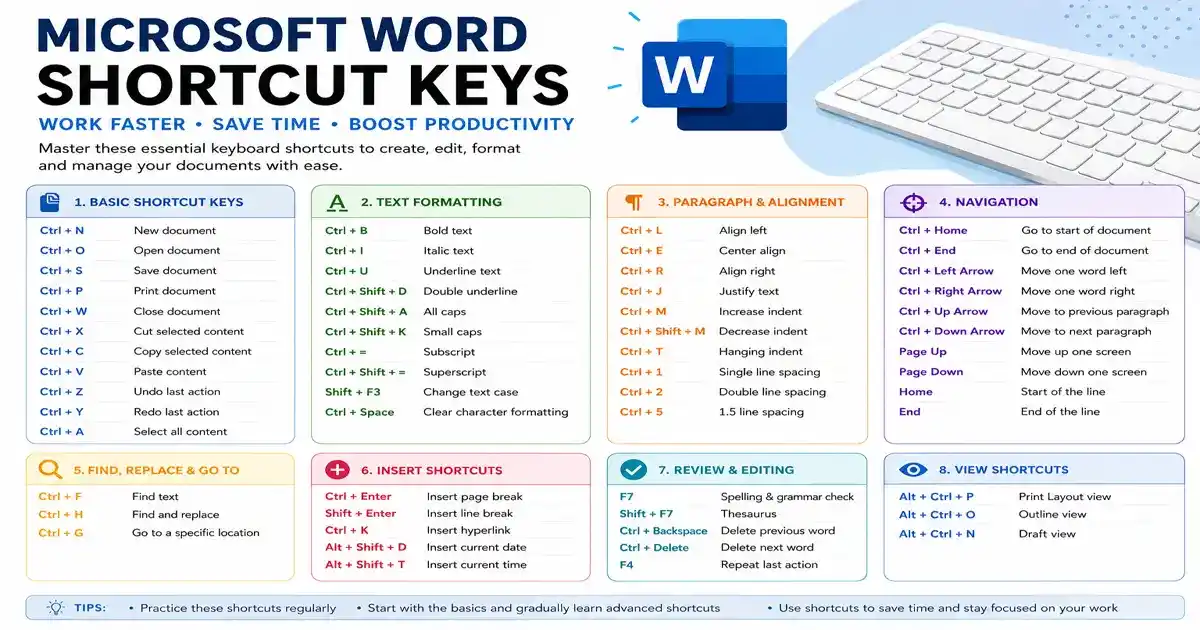
Microsoft Word Shortcut Keys: Complete List of Keyboard Shortcuts with Details
Microsoft Word application software is one of the most globaly. Used Word Processing applications for Students, Teachers, Office employees, Writers, Professionals and Business users. Maximum people use the mouse to access Word menus and tools, Learning Microsoft Word shortcut keys can make daily work faster and easier.
Instead of repeatedly moving the mouse between the document and the toolbar, you can use keyboard shortcuts to format text, edit documents, save files, insert elements, navigate through pages and perform many other tasks within seconds.
we will explore the most useful Microsoft Word shortcut keys, starting with basic commands and moving toward advanced shortcuts. These shortcuts can be useful for beginners as well as experienced Microsoft Word users.
What Are Microsoft Word Shortcut Keys?
Microsoft Word shortcut keys are combinations of two or more keyboard keys that perform a particular command.
These shortcuts reduce the need to use the mouse and help users complete common tasks quickly.
For students and office professionals, knowing frequently used Word shortcuts can save considerable time, especially when working with long documents.
Basic Microsoft Word Shortcut Keys
The following shortcuts are some of the most commonly used commands in Microsoft Word.
| Shortcut Key | Function | Details |
| Ctrl + N | New Document | Creates a new Word document. |
| Ctrl + O | Open | Opens an existing document. |
| Ctrl + S | Save | Saves the current document. |
| Ctrl + Shift + S | Save As | Saves the document with a new name or location. |
| Ctrl + P | Opens the print window. | |
| Ctrl + W | Close Document | Closes the current document. |
| Ctrl + Z | Undo | Reverses the previous action. |
| Ctrl + Y | Redo | Repeats or restores an action. |
| Ctrl + X | Cut | Removes selected content and copies it to the clipboard. |
| Ctrl + C | Copy | Copies selected content. |
| Ctrl + V | Paste | Inserts copied or cut content. |
| Ctrl + A | Select All | Selects all content in the document. |
Microsoft Word Text Formatting Shortcut Keys
Formatting is an important part of creating a professional document. Instead of selecting formatting options from the ribbon, you can use keyboard shortcuts.
| Shortcut Key | Function |
| Ctrl + B | Makes text bold |
| Ctrl + I | Makes text italic |
| Ctrl + U | Underlines text |
| Ctrl + Shift + D | Applies double underline |
| Ctrl + Shift + W | Underlines words but not spaces |
| Ctrl + Shift + A | Changes selected text to uppercase |
| Ctrl + Shift + K | Applies small caps |
| Ctrl + = | Applies subscript |
| Ctrl + Shift + = | Applies superscript |
| Ctrl + Spacebar | Removes direct character formatting |
| Shift + F3 | Changes text case |
Paragraph Alignment Shortcut Keys
Microsoft Word provides several alignment options. These shortcuts are particularly useful when preparing Assignments, Reports, Applications and Professional documents.
| Shortcut Key | Function |
| Ctrl + L | Aligns text to the left |
| Ctrl + E | Centers text |
| Ctrl + R | Aligns text to the right |
| Ctrl + J | Justifies text |
What Does Justify Mean?
When you press Ctrl + J, Word adjusts the spacing between words so that the text lines are aligned with both the left and right margins.
This formatting is commonly used in formal reports, articles and academic documents.
Font and Text Size Shortcuts
Changing font size manually can become inconvenient when formatting a large document. The following shortcuts can help.
| Shortcut Key | Function |
| Ctrl + Shift + > | Increase font size |
| Ctrl + Shift + < | Decrease font size |
| Ctrl + ] | Increase font size by 1 point |
| Ctrl + [ | Decrease font size by 1 point |
Find and Replace Shortcut Keys
When working with a long document, finding a particular word manually can take a lot of time.
| Shortcut Key | Function |
| Ctrl + F | Find text |
| Ctrl + H | Find and Replace |
| Ctrl + G | Go To a page, section, line, or other location |
Example of Find and Replace
Suppose your document contains the word “Computer” 50 times and you want to replace it with “computer technology.”
Instead of searching for every occurrence manually:
- Press Ctrl + H.
- Enter the original word in the Find box.
- Enter the replacement word in the Replace box.
- Choose the appropriate replacement option.
Navigation Shortcut Keys in Microsoft Word
Navigation shortcuts allow you to move around a document quickly.
| Shortcut Key | Function |
| Ctrl + Left Arrow | Move one word to the left |
| Ctrl + Right Arrow | Move one word to the right |
| Ctrl + Up Arrow | Move to the previous paragraph |
| Ctrl + Down Arrow | Move to the next paragraph |
| Home | Move to the beginning of the line |
| End | Move to the end of the line |
| Ctrl + Home | Go to the beginning of the document |
| Ctrl + End | Go to the end of the document |
| Page Up | Move up one screen |
| Page Down | Move down one screen |
Text Selection Shortcut Keys
Selecting text with the mouse is not always convenient. Keyboard shortcuts provide a faster alternative.
| Shortcut Key | Function |
| Shift + Left Arrow | Select one character to the left |
| Shift + Right Arrow | Select one character to the right |
| Ctrl + Shift + Left Arrow | Select one word to the left |
| Ctrl + Shift + Right Arrow | Select one word to the right |
| Shift + Home | Select to the beginning of the line |
| Shift + End | Select to the end of the line |
| Ctrl + Shift + Home | Select from the cursor to the beginning of the document |
| Ctrl + Shift + End | Select from the cursor to the end of the document |
Paragraph and Indentation Shortcuts
Paragraph formatting can also be performed with keyboard commands.
| Shortcut Key | Function |
| Ctrl + M | Increase paragraph indentation |
| Ctrl + Shift + M | Remove paragraph indentation |
| Ctrl + T | Create a hanging indent |
| Ctrl + Shift + T | Reduce hanging indent |
| Ctrl + 1 | Apply single line spacing |
| Ctrl + 2 | Apply double line spacing |
| Ctrl + 5 | Apply 1.5 line spacing |
Microsoft Word Styles Shortcut Keys
| Shortcut Key | Function |
| Ctrl + Shift + N | Apply Normal style |
| Ctrl + Alt + 1 | Apply Heading 1 |
| Ctrl + Alt + 2 | Apply Heading 2 |
| Ctrl + Alt + 3 | Apply Heading 3 |
Insert Related Microsoft Word Shortcut Keys
Word allows users to insert different elements into documents. Some useful shortcuts include:
| Shortcut Key | Function |
| Ctrl + Enter | Insert a page break |
| Shift + Enter | Insert a line break |
| Ctrl + K | Insert a hyperlink |
| Alt + Shift + D | Insert the current date |
| Alt + Shift + T | Insert the current time |
Microsoft Word Review and Editing Shortcuts
When editing a document, these shortcuts can make the process considerably easier.
| Shortcut Key | Function |
| Ctrl + Z | Undo the previous action |
| Ctrl + Y | Redo or repeat an action |
| Ctrl + F | Find text |
| Ctrl + H | Find and replace |
| Ctrl + Backspace | Delete the previous word |
| Ctrl + Delete | Delete the next word |
| F7 | Check spelling and grammar |
| Shift + F7 | Open thesaurus |
The Ctrl + Backspace and Ctrl + Delete shortcuts are particularly useful when editing sentences because they allow you to remove entire words rather than deleting individual characters.
Microsoft Word Function Keys
Function keys can perform several useful Word commands.
| Function Key | Action |
| F1 | Open Help |
| F4 | Repeat the last action |
| F5 | Open the Go To function |
| F7 | Spelling and grammar check |
| F12 | Open Save As |
| Shift + F3 | Change text case |
| Shift + F7 | Thesaurus |
| Ctrl + F4 | Close the current document window |
| Ctrl + F6 | Switch between open documents |
Useful Shortcut Keys for Tables
Working with tables can become easier with keyboard commands.
| Shortcut Key | Function |
| Tab | Move to the next cell |
| Shift + Tab | Move to the previous cell |
| Alt + Home | Move to the first cell in a row |
| Alt + End | Move to the last cell in a row |
| Alt + Page Up | Move to the first cell in a column |
| Alt + Page Down | Move to the last cell in a column |
While entering information into a table, pressing Tab moves the cursor to the next cell. When the cursor is in the final cell of a table, pressing Tab can create another row.
Microsoft Word Document View Shortcuts
Different document views can be useful depending on the task. Some useful keyboard commands are given below:
- Alt + Ctrl + P — Print Layout view
- Alt + Ctrl + O — Outline view
- Alt + Ctrl + N — Draft view
These shortcuts can help users switch between different ways of viewing and working with their documents.
Shortcut Keys for Special Characters and Symbols
Microsoft Word includes several methods for inserting symbols and special characters. For example, you can use the Insert tab to access symbols, or use Unicode-based methods where appropriate.
The exact shortcut available can depend on the symbol and Word version, so users should not assume that every special character has a universal keyboard shortcut.
Frequently Used Microsoft Word Shortcut Keys at a Glance
For beginners remembering every shortcut at once is unnecessary. Start with the following essential commands:
| Shortcut | Use for |
| Ctrl + N | New document |
| Ctrl + O | Open document |
| Ctrl + S | Save |
| Ctrl + P | |
| Ctrl + C | Copy |
| Ctrl + X | Cut |
| Ctrl + V | Paste |
| Ctrl + Z | Undo |
| Ctrl + Y | Redo |
| Ctrl + A | Select all |
| Ctrl + F | Find |
| Ctrl + H | Replace |
| Ctrl + B | Bold |
| Ctrl + I | Italic |
| Ctrl + U | Underline |
| Ctrl + L | Left align |
| Ctrl + E | Center align |
| Ctrl + R | Right align |
| Ctrl + J | Justify |
| Ctrl + K | Insert hyperlink |
| Ctrl + Enter | Page break |
| F7 | Spelling and grammar |
Why Should You Learn Microsoft Word Shortcut Keys?
Learning keyboard shortcuts is not simply about memorizing combinations of keys. More importantly, it changes the way you work with documents.
1. Saves Time
Common commands can be performed almost instantly without searching through menus.
2. Improves Productivity
When you use shortcuts regularly, you can spend more time concentrating on your actual content instead of document controls.
3. Makes Editing Easier
Commands such as Ctrl + F, Ctrl + H, Ctrl + Z, and Ctrl + Y make editing much more efficient.
4. Useful for Students
Students can use Word shortcuts while preparing assignments, projects, practical files, resumes, and presentations.
5. Helpful for Office Professionals
Office employees frequently work with Reports, Letters, Spreadsheets, Applications and other Documents. Shortcut knowledge can make repetitive tasks faster.
6. Useful for Computer Exams
Microsoft Word shortcut keys are commonly included in computer awareness and basic computer knowledge questions. Learning the important shortcuts can also help candidates preparing for competitive and computer based examinations.
How to Memorize Microsoft Word Shortcut Keys Easily
You do not need to memorize the entire list in one day. Learn shortcuts according to their purpose.
Start with the basic editing group:
Ctrl + C = Copy
Ctrl + X = Cut
Ctrl + V = Paste
Ctrl + Z = Undo
Ctrl + Y = Redo
Next learn formatting:
Ctrl + B = Bold
Ctrl + I = Italic
Ctrl + U = Underline
Then learn document management:
Ctrl + N = New
Ctrl + O = Open
Ctrl + S = Save
Ctrl + P = Print
The more frequently you use a shortcut, the easier it becomes to remember it naturally.
Frequently Asked Questions About Microsoft Word Shortcut Keys
What is the shortcut key for Save in Microsoft Word?
Ctrl + S is used to save the current Word document.
What is the shortcut key for Copy?
Ctrl + C copies selected text, images or other selected content.
What is the shortcut key for Paste?
Ctrl + V pastes content that has been copied or cut.
What is the shortcut key for Bold?
Ctrl + B makes selected text bold.
What is the shortcut key for Undo?
Ctrl + Z reverses the most recent action.
What is the shortcut key for Redo?
Ctrl + Y repeats or restores an action that was undone.
What is the shortcut key to select all text?
Ctrl + A selects all content in the current document.
What is the shortcut key for Find?
Ctrl + F opens the Find feature.
What is the shortcut key for Replace?
Ctrl + H opens the Find and Replace feature.
What is the shortcut key for a new page?Ctrl + Enter inserts a page break and starts a new page.
Microsoft Word shortcut keys are simple but they can make a significant difference in everyday computer work.If you are a student preparing an assignment, an employee creating an office report, a teacher preparing study material or a professional working with lengthy documents, keyboard shortcuts can help you work more efficiently.
Rather than trying to memorize every command immediately, begin with the most frequently used shortcuts such as Ctrl + C, Ctrl + V, Ctrl + X, Ctrl + Z, Ctrl + S, Ctrl + F, Ctrl + B, Ctrl + I, and Ctrl + U. Once these become familiar, gradually add navigation, formatting, paragraph, table and advanced shortcuts to your routine.
Knowing Microsoft Word shortcut keys can improve both Speed and Productivity and make document editing a much smoother experience.

